Printing Room Lists
This article explains how to use the printing functionality in the roommaster Web housekeeping module to generate physical room lists for housekeeping staff.
Overview
The printing feature allows you to create physical copies of room information that can be distributed to housekeeping staff. This is particularly useful for properties that prefer paper-based workflows or need backup copies when digital systems are unavailable.
Accessing the Print Function
- Login to the Application - Access the roommaster Web application using your credentials
- Navigate to Housekeeping Module - Select the housekeeping module from the main navigation
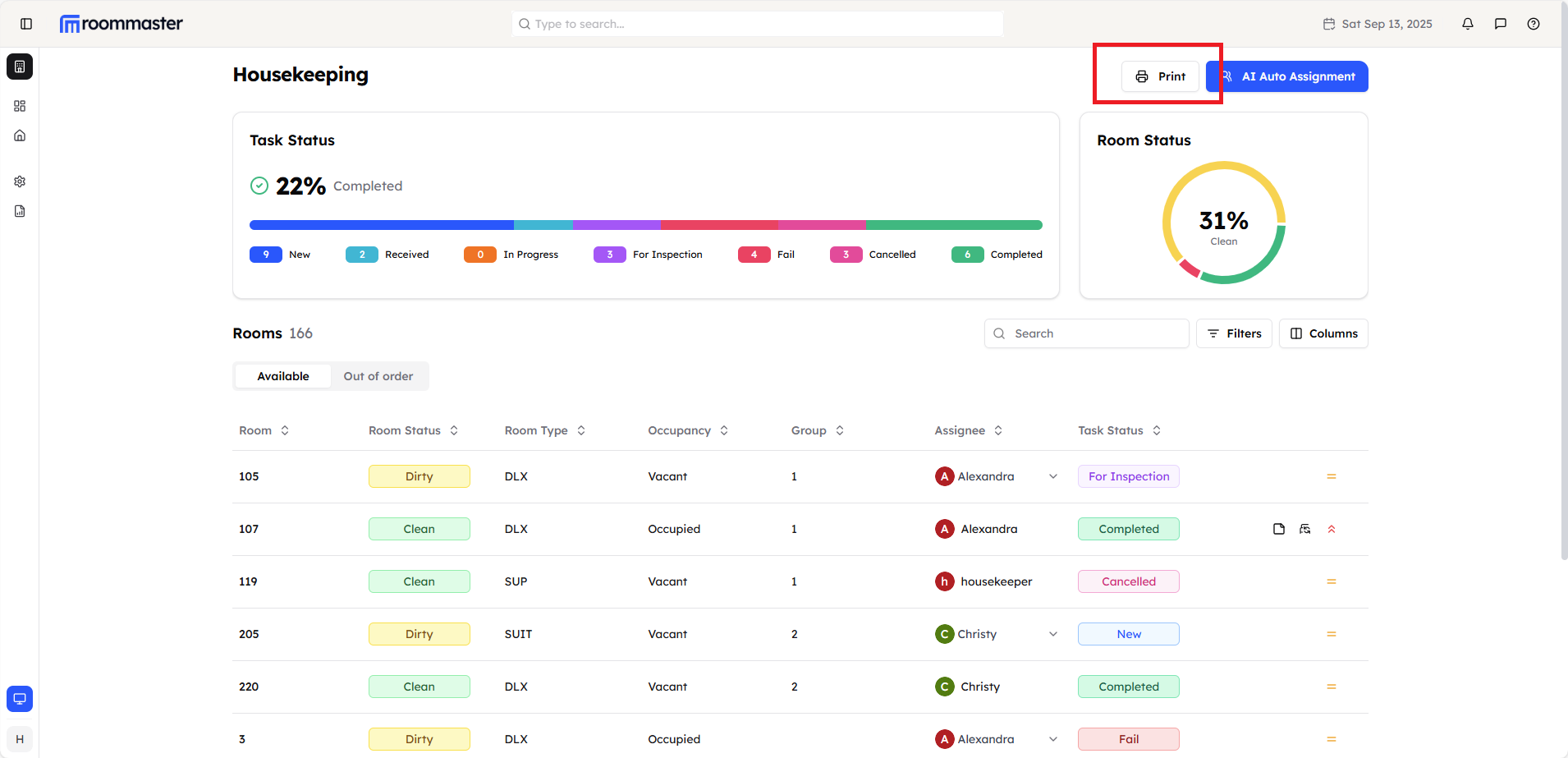
- Locate the Print Button - The Print button is located at the top of the page in the housekeeping module
-
Click the Print Button - Click the Print button to open the printing modal
-
Configure Your Settings - Set up your printing preferences and options
-
Preview and Print - Review the preview and proceed with printing your room list
Print Configuration Options
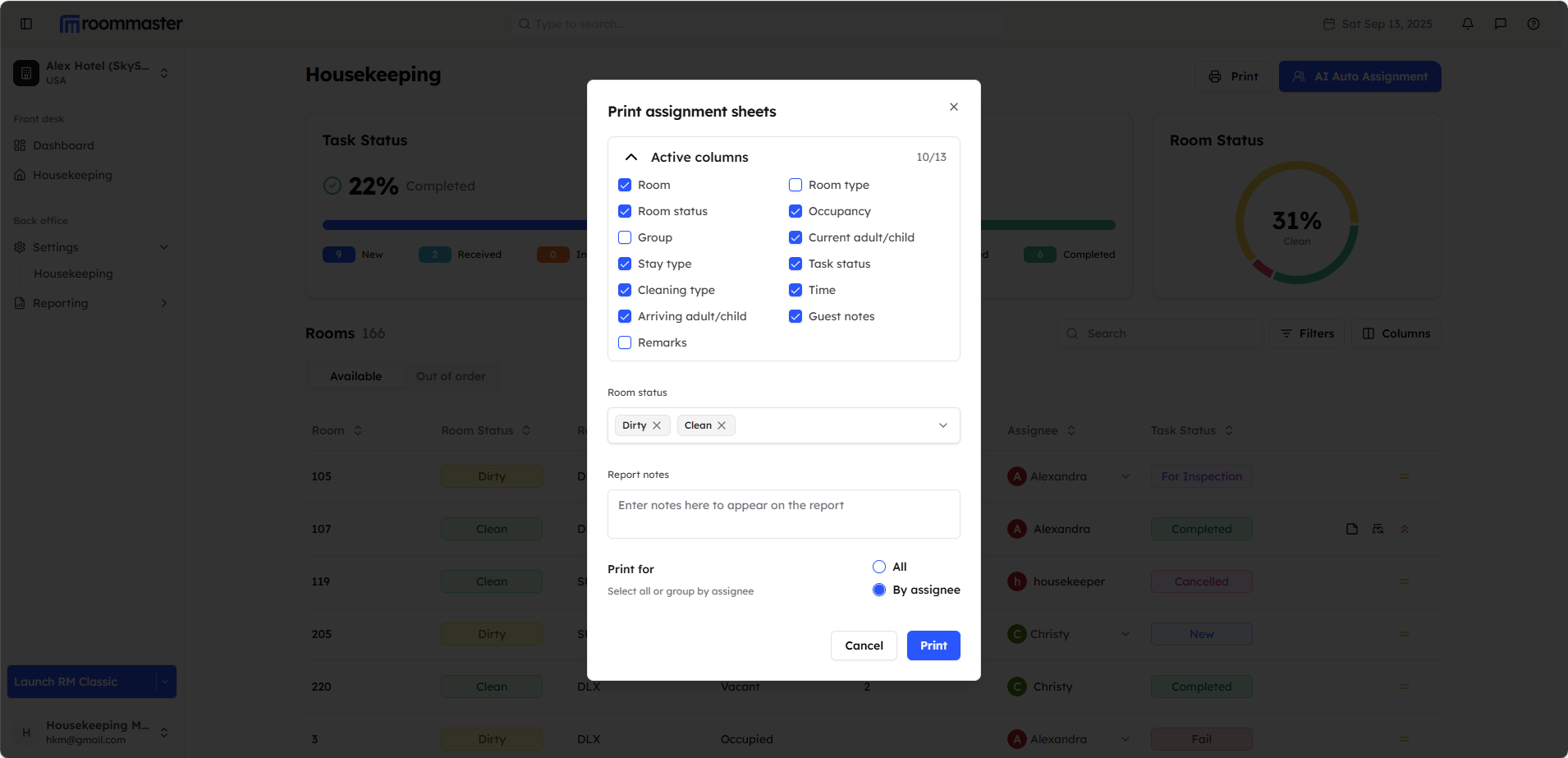
Column Selection
Choose which columns to include in your printed sheets:
- Room Number - Unique room identifier
- Room Type - Classification of the room
- Room Group/Zone - Area or section assignment
- Current Status - Clean, Dirty, or Out of Order
- Occupancy - Whether the room is Occupied or Vacant
- Assignee - Assigned housekeeping staff member
- Task Status - Current cleaning task status
- Priority - Task priority level
- Arrival Today - Guest arrival scheduled for today
- Checkout - Guest checkout scheduled for today
- Change Sheets - Sheet change requirements
- Guest Housekeeping Notes - Special instructions
Room Status Filtering
Select which rooms to include in your printout based on their status:
- Clean - Include rooms that are ready for occupancy
- Dirty - Include rooms that require cleaning
- Out of Order - Include rooms that are unavailable due to maintenance
The status filter in the print modal will override any status filters you have applied in the room list table. Make sure to configure the correct status filters in the print modal to get the desired results.
Report Notes
Add custom notes that will appear at the footer of each printed page:
- General Instructions - Overall housekeeping guidelines
- Special Requests - Property-specific requirements
- Contact Information - Manager or supervisor details
- Emergency Procedures - Safety or emergency protocols
Print Organization Options
Choose how to organize your printed sheets:
Print All Rooms (No Specific Order)
- Single List - All selected rooms in one continuous list
Print by Assignee
- Per Housekeeper - Separate sheets for each assigned housekeeper
Print Preview
After configuring your print options:
- Click Print to generate the preview
- Review the Preview - Check that all selected columns and rooms are included
- Verify Organization - Ensure rooms are grouped correctly (by assignee or status)
- Check Report Notes - Confirm footer notes appear correctly
- Print or Cancel - Proceed with printing or make adjustments
Search and Filter Integration
The printing functionality respects your current view settings:
Search Integration
- Search Results Only - If you've searched for specific rooms, only those rooms will be printed
- Search Terms - Your search criteria are maintained in the printout
Filter Integration
- Active Filters - All active filters (status, type, occupancy, group, assignee) are applied to the printout
- Filtered Results - Only rooms matching your filter criteria will be included
- Consistent Data - Printed sheets match exactly what you see on screen
Sorting Integration
- Column Sorting - Your current column sort order is maintained in the printout
- Custom Order - Rooms appear in the same order as displayed on screen
Troubleshooting
Common Issues
Missing Rooms in Printout
- Check your active filters - rooms may be filtered out
- Verify your search criteria if you performed a search
- Confirm room status selections match your expectations
Incorrect Column Display
- Review your column selection in the print modal
- Check that the columns exist and contain data
- Verify your screen view matches your print preferences
Still Need Help?
For additional assistance with Room List printing:
- Contact support at support@roommaster.com
- Visit our Knowledge Base